
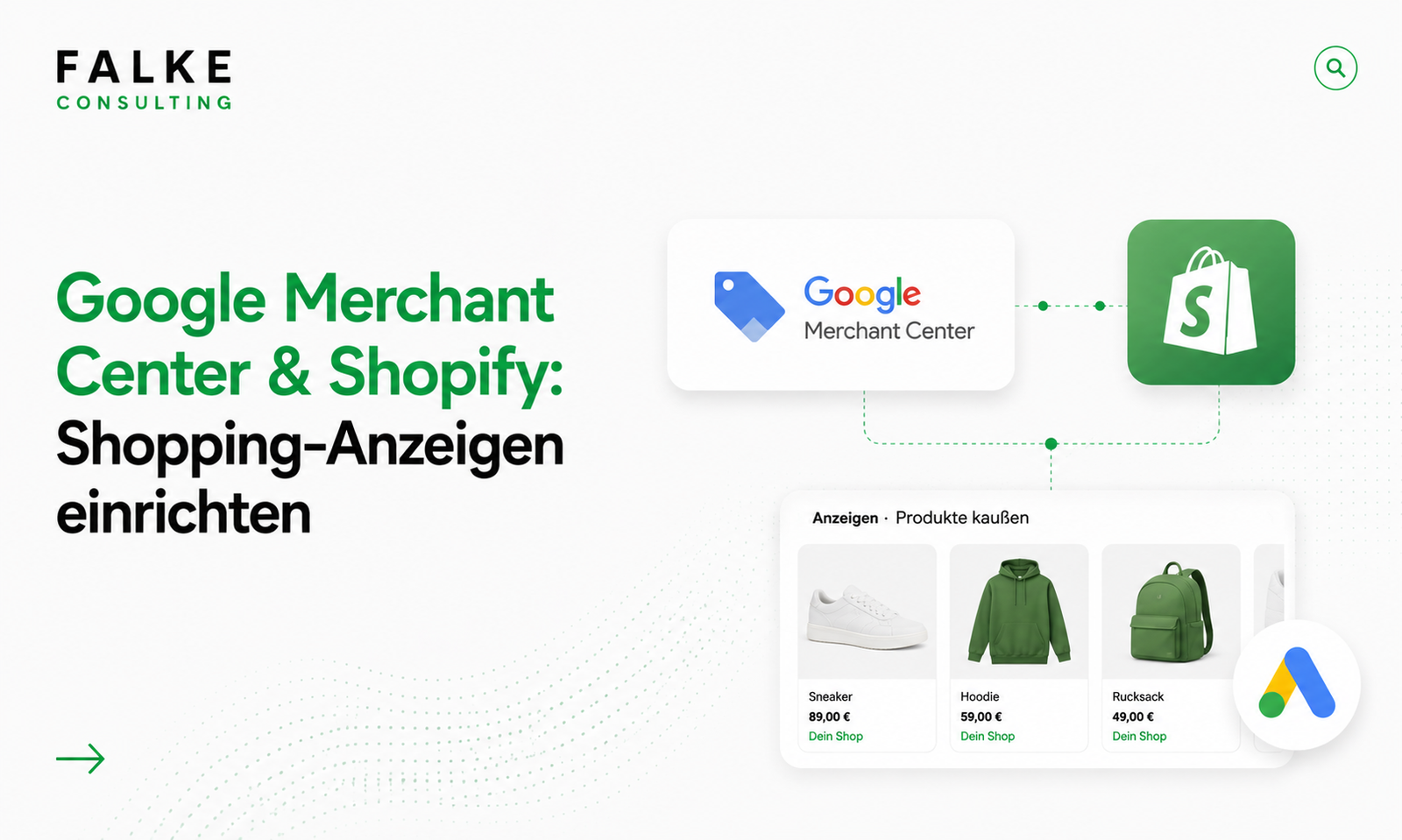
Google Merchant Center & Shopify: Setting up Shopping Ads
Setting up Product Feeds, Google Merchant Center & Shopping Ads for Shopify Step-by-Step – Clean Setup for More Visibility in DACH.

Key takeaways
- Google Shopping uses a product data feed in Google Merchant Center – you can set up the connection to Shopify in just a few steps.
- Feed quality is crucial: GTINs, correct shipping and tax information, and clean titles are mandatory, otherwise products will be rejected.
- You can automatically synchronize your catalog with the Merchant Center using the free Google & YouTube channel.
- For ads, link Google Ads and usually start with a Performance Max campaign based on your feed.
Do you want to make your products visible on Google Shopping? Then you need a clean setup consisting of a product feed, Google Merchant Center, and an initial campaign. This guide will walk you through the specific setup for your Shopify store step-by-step – from feed provision to the first Shopping ad in the DACH region.
Note: This is about the technical setup. Whether SEO or paid ads are more beneficial for you is discussed in the strategic article SEO vs. SEA for Shopify. Prefer to have it implemented directly? Book an appointment →
01What you need for Google Shopping
Three building blocks come together for Shopping ads. If you set them up sequentially, you can avoid common pitfalls:
- Product data feed – the structured list of your products with all mandatory fields.
- Google Merchant Center – the platform that receives and checks your feed.
- Google Ads – for paid Shopping or Performance Max campaigns (free listings are also possible without it).
02Providing a product data feed from Shopify
The easiest way in the Shopify ecosystem is the official, free Google & YouTube channel from the Shopify App Store. It automatically generates and updates your feed and synchronizes product changes.
- Install the Google & YouTube channel and connect it to your Google account.
- Select country, language, and target market(s) – for DACH, e.g., Germany/German.
- Assign product categories and fields so Google can classify your items correctly.
If you need more control (multiple countries, feed rules, exclusions), you can use specialized feed apps. For starters, the native channel is sufficient in almost all cases.
03Create Merchant Center & link shop
If you don't have one yet, create a Google Merchant Center account and verify your website. The Shopify channel usually handles the linking automatically; manually, you proceed as follows:
- Enter your website domain in the Merchant Center and verify it by connecting to Shopify.
- Enter shipping and return information in the Merchant Center (it must match your shop).
- Check tax settings – in the DACH region, gross prices are standard; this must match your feed. For more on this, see the article Setting up Shopify taxes & OSS correctly.
04Mandatory information & feed quality
Most rejections are due to incomplete or contradictory data. You should have these fields under control:
| Field | Why it's important |
|---|---|
| GTIN / Brand / MPN | Unique product identification – without a GTIN, many items are rejected or displayed less prominently |
| Title & Description | Relevant keywords first; titles like "Brand + Product + Variant" instead of marketing jargon |
| Images | Clean product images without watermarks or promotional text |
| Price & Availability | Must exactly match the shop (otherwise account warnings) |
| Shipping & Tax | Correctly entered, matching your DACH setup |
Good product titles and images are not only helpful in the feed, but also on the page itself – the article Optimizing Shopify product pages shows you how to leverage this.
05Setting up your first Performance Max / Shopping campaign
As soon as your products are approved in the Merchant Center, you can advertise:
- Link Google Ads with the Merchant Center.
- Choose campaign type – for most shops, Performance Max is the standard, as it automatically populates Shopping surfaces.
- Set budget, target country (DE/AT/CH), and – if available – a realistic target for Return on Ad Spend (ROAS).
- Add compelling assets (images, texts) so the campaign can also be displayed outside of Shopping.
Start with a manageable budget, give the campaign 2-3 weeks to learn, and then optimize based on real data rather than gut feeling.
06Conversion tracking & feed maintenance
Without clean tracking, you'll never know what your ads are truly delivering. Pay attention to:
- Conversion tracking for Google Ads is set up correctly – ideally stabilized server-side. The article Server-Side Tracking for Shopify shows you how to do this.
- Feed up-to-date: Have prices, stock, and new products synchronized automatically.
- Regular diagnosis in the Merchant Center: promptly correct rejected items.
07Avoiding common rejection reasons
- Missing GTINs for branded products.
- Price or availability discrepancies between the feed and the shop.
- Missing or incorrect shipping/return information in the Merchant Center.
- Images with logos, watermarks, or promotional text.
- Incomplete legal information – imprint, terms and conditions, and data protection must be easily accessible.
If you'd prefer to have your feed, Merchant Center, and campaign set up correctly from the start, you'll find the right framework on the Services page – or you can browse the Shop first.
08Conclusion
Google Shopping for Shopify is not rocket science: a clean feed via the Google & YouTube channel, a verified Merchant Center with correct mandatory information, and a focused Performance Max campaign with proper tracking. Those who take feed quality seriously avoid rejections and gain predictable visibility in the DACH region.
Frequently asked questions
How do I connect Shopify to Google Merchant Center?
Do I need GTINs for Google Shopping?
Which campaign is suitable for getting started?
Why are my products being rejected?

Seit Jahren setze ich Shopify-Shops für Marken im DACH-Raum um — von der Migration über den Relaunch bis zur Conversion-Optimierung. In diesem Blog teile ich, was in echten Projekten funktioniert.
Mehr aus deinem Shopify-Shop holen?
Lass uns in einem kostenlosen Erstgespräch herausfinden, wo bei dir der größte Hebel liegt — technisch, inhaltlich oder bei der Conversion.
Kostenloses Erstgespräch buchen